
On this page
The first time you log in to ACMA Assist, you will be asked to verify the ABN and name of your organisation.
The next time you log in, you will be taken directly to your organisation’s account on the register.
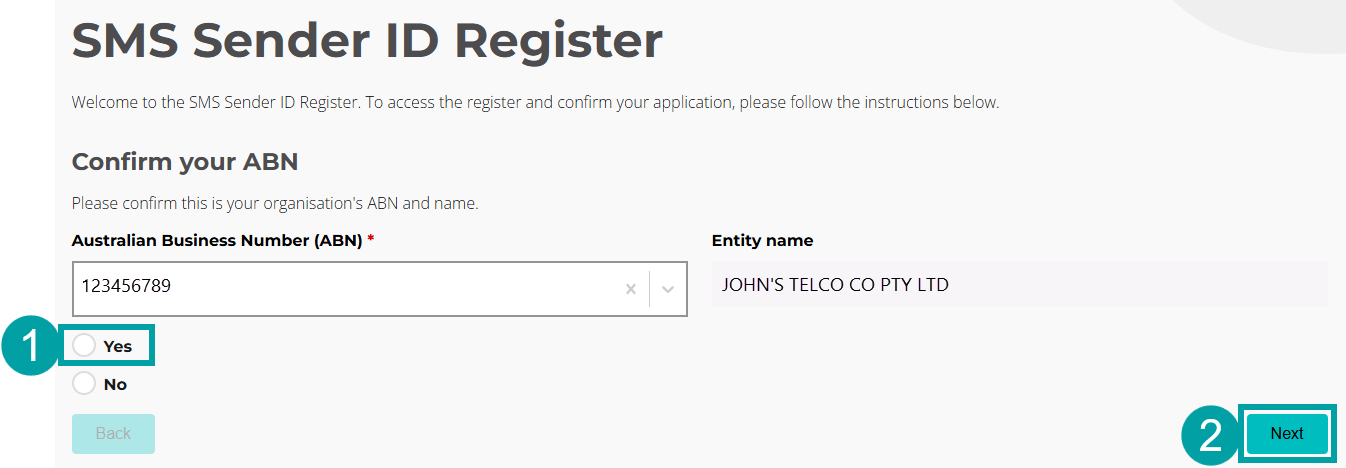
3.2.1 Confirm your ABN
If the ABN and entity name are correct:
- Check Yes.
|
Click on the Next button
3.2.2 Verify your email
Next you need to prove that you are authorised to access the register on your organisation’s behalf. In the previous section (3.1), you logged in to ACMA Assist digital ID. The system will check your myID email address against the authorised contact and service of notice email addresses listed for your organisation on the ABR.
The next action you take will depend on which of the following 2 options applies.
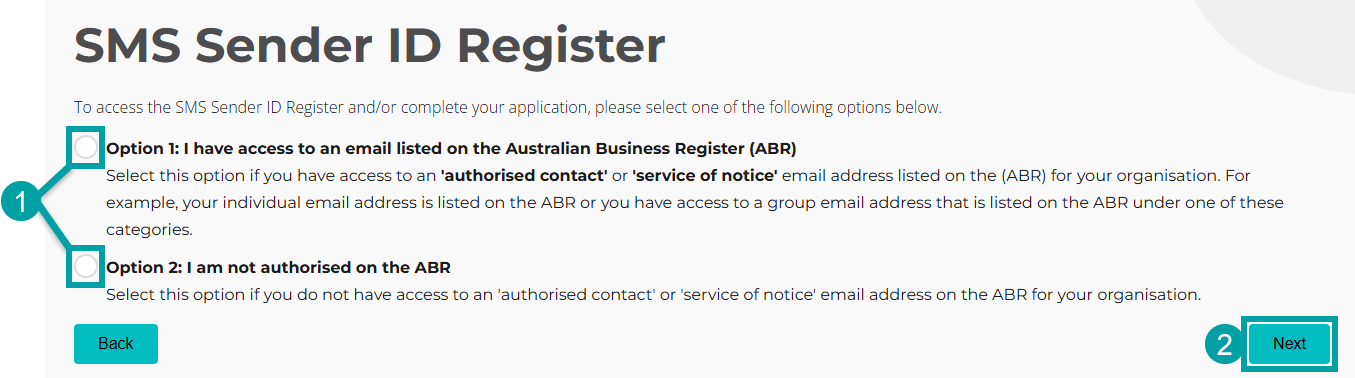
- Check one of the options (see below for further information).
- Click the Next button.
|
Option 1: You have access to an email listed on the Australian Business Register (ABR) Select this option if you have access to an authorised contact or service of notice email address listed on the ABR for your organisation. For example, your individual email address is listed on the ABR or you have access to a group email address that is listed on the ABR under one of these categories. Skip to next section.
Option 2: You don’t have access to an email listed on the ABR. Select this option if you don’t have access to an authorised contact or service of notice email address listed on the ABR for your organisation. Skip to next section.
Instructions: Option 1a The email address you logged in with is listed on the ABR
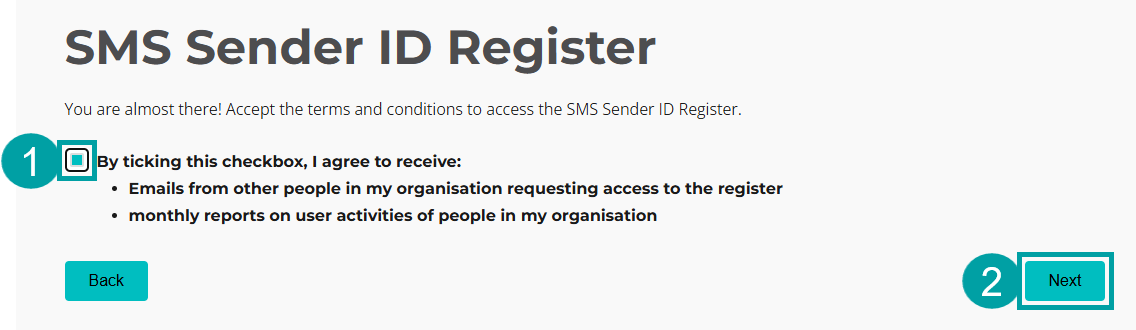
If the email address you used to access ACMA Assist (using your myID) is listed as an authorised contact or service of notice on the ABR, you will be asked to agree to the terms and conditions for the register.
- Read the terms and conditions and check the check box to agree.
- Click on the Next button.
|
You will be taken to your organisation’s account for the register.
To add or delete other business administrators and authorised users to ACMA Assist, go to section 3.3.
Instructions: Option 1b You have an alternative email address that is listed on the ABR
If the email address you used to create your ACMA Assist account (using your myID) is not listed as an authorised contact or service of notice on the ABR, but you have another email address that is (for example, your corporate email is listed on the ABR):
- Enter the alternative email address that is listed on the ABR in the Email address field.
- Click on the Next button.

|
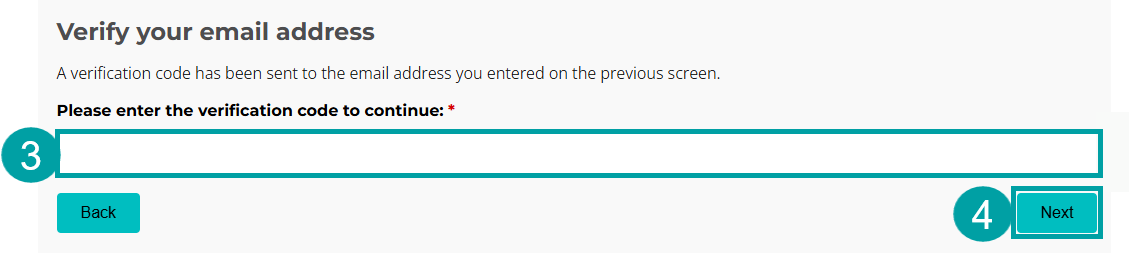
You will receive an email that contains a verification code.
- Enter the verification code in the text box.
- Click on the Next button.
|
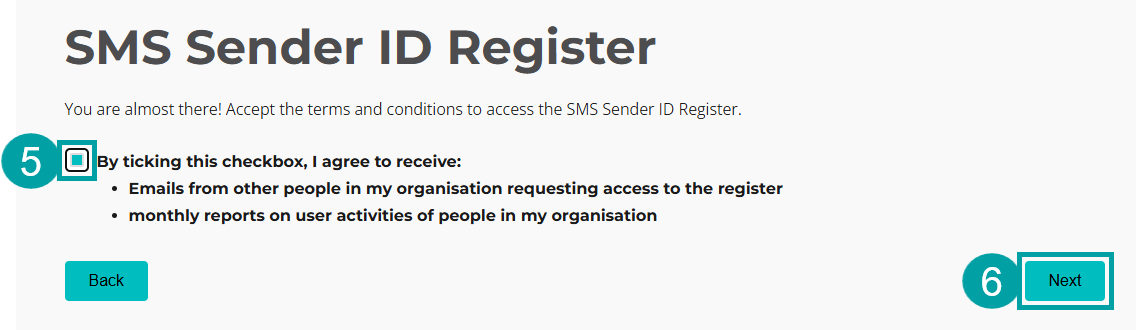
If your email is listed on the ABR, you will be asked to agree to the terms and conditions for the register.
- Read the terms and conditions and check the box to agree.
- Click on the Next button.
|
You will be taken to your organisation’s account for the register.
To add or delete other business administrators and authorised users to ACMA Assist, go to section 3.3.
Instructions: Option 2 You don’t have access to an email listed on the ABR
If you don’t have an email address listed as an authorised contact or service of notice for your organisation’s ABN on the ABR, you can either follow the steps below to request access from an authorised contact or update the authorised contact details on the ABR. Go to how to update your authorised contacts for instructions.
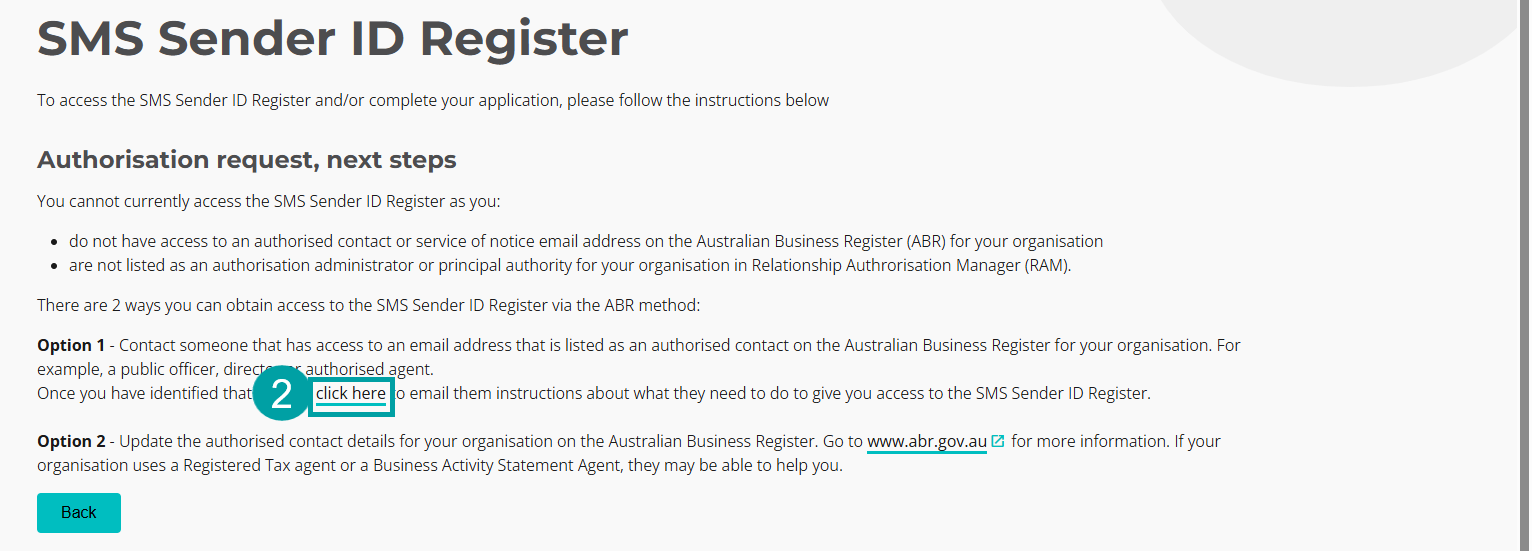
- Identify people who are listed as authorised contacts or in the service of notice section for your organisation’s ABN on the ABR, for example a Public Officer or Director.
- Click on the link to open an email template in your email platform. Insert the email address of the contact you identified on the ABR.
|
- The template asks the contact on the ABR to create an ACMA Assist account for the organisation, and to provide you access to that account. Your name and company name will be pre-populated. You must manually populate the parts of the template highlighted below before you send it to the authorised contact.
|
Dear [INSERT NAME], I am contacting you about the SMS Sender ID Register because you are listed as an authorised contact for JOHN’S TELCO CO PTY LTD on the Australian Business Register (ABR). An authorised contact is required to:
The register is run by the Australian Communications and Media Authority and is available via the ACMA's online portal, ACMA Assist. You can read more about the SMS Sender ID Register here: SMS Sender ID Register. What you need to do Step 1: Log in to ACMA Assist a) Follow this unique link ACMA Assist unique link with ABN b) Follow these instructions to log in: https://www.acma.gov.au/instructions, starting from “5. Click on the Sign up or log in button”. Step 2: Set up JOHN’S TELCO CO PTY LTD register account a) After you have successfully logged in to ACMA Assist, you will be asked to confirm JOHN’S TELCO CO PTY LTD's ABN. You will also be asked to confirm your email address. Follow the on-screen instructions to complete this process. Step 3: Authorise other users to access JOHN’S TELCO CO PTY LTD's SMS Sender ID Register account a) You will then be directed to the 'Authorised users' section. b) Click on ‘invite user’ and enter [INSERT YOUR WORK EMAIL] as the email address. c) Enter my name: John Citizen [MAKE SURE YOUR NAME IS ENTERED EXACTLY THE SAME AS FOR YOUR myID ACCOUNT] d) Enter a message to me in the message field, for example, confirming that you have authorised me to access the SMS Sender ID Register. e) Assign an access level. You can choose one of the following access levels.
a) Confirm/revoke sender IDs: I will have the ability to confirm or revoke sender ID registration requests. b) Apply to register sender IDs: I will have the ability to register sender IDs. The availability of permissions may vary depending on the role of the entity. Optional: The Start Date and End Date fields are optional. Use these only if you wish to limit my access to JOHN’S TELCO CO PTY LTD's register account to a specific timeframe. If you have any questions, please contact me on [INSERT WORK PHONE NUMBER]. Regards, |
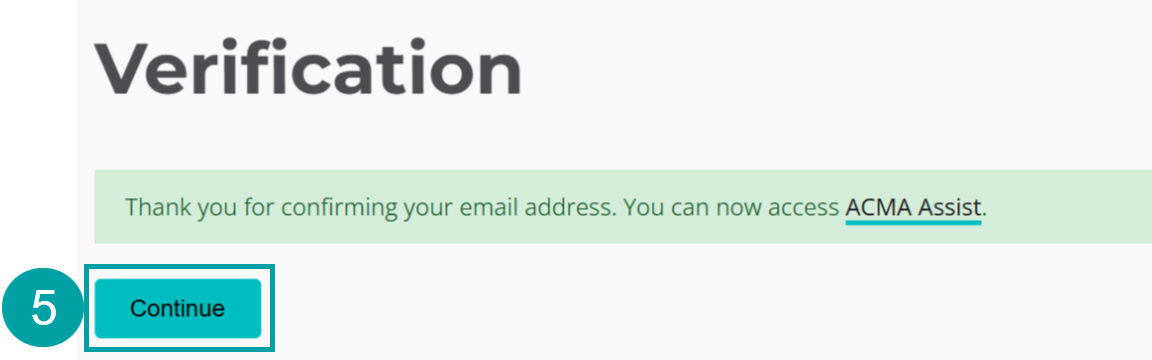
- You will receive an email once you have been granted access. Click on the unique link in that email.
- Click on the Continue button.
|
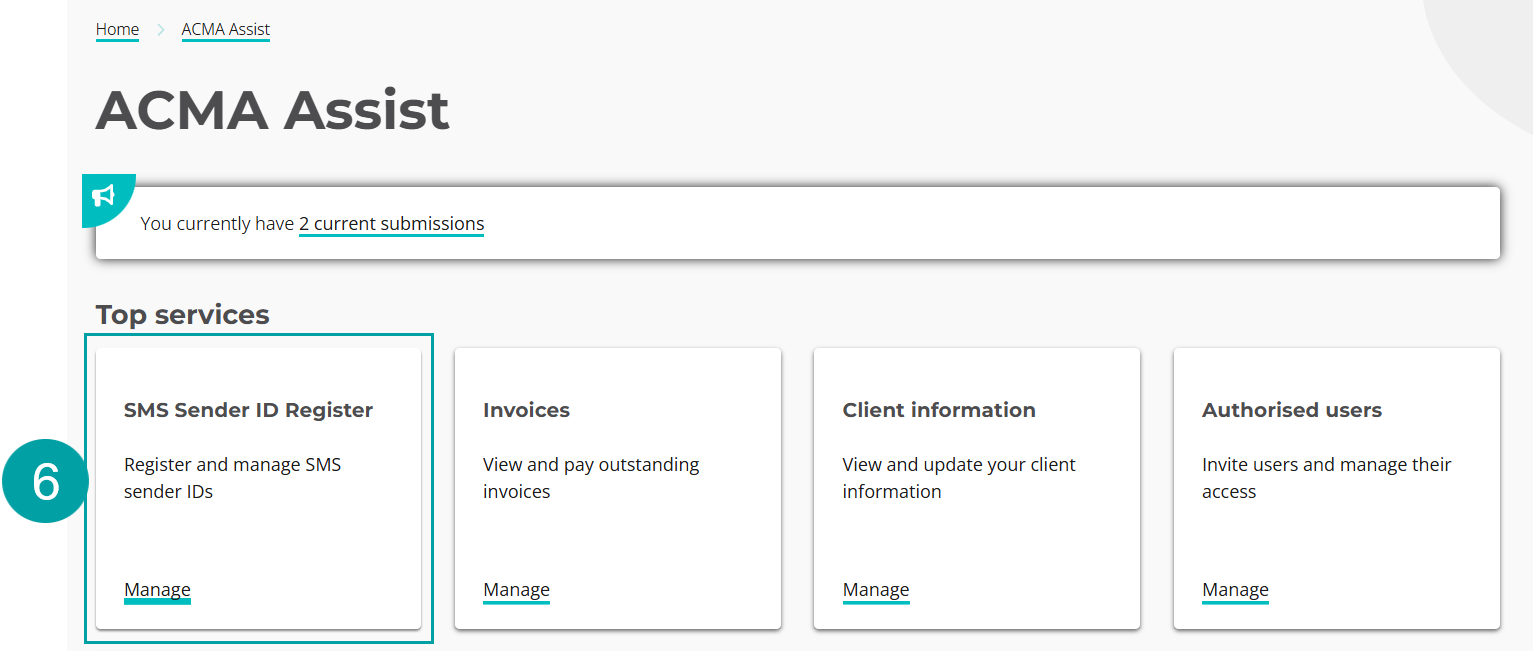
You will now be a business administrator or authorised user for your organisation and will be taken to the ACMA Assist homepage.
- Click on the SMS Sender ID Register tile to access the register.
|