
On this page
As a business administrator for your telco, you can add:
- authorised users to your organisation’s account. Authorised users can perform all or some actions in the register (depending on the permission settings) on your organisation’s behalf, but they cannot add other users.
- additional business administrators to your organisation’s account, who can perform all actions in the register, including adding or deleting other business administrators and authorised users.
3.3.1 Add other business administrators and authorised users to ACMA Assist
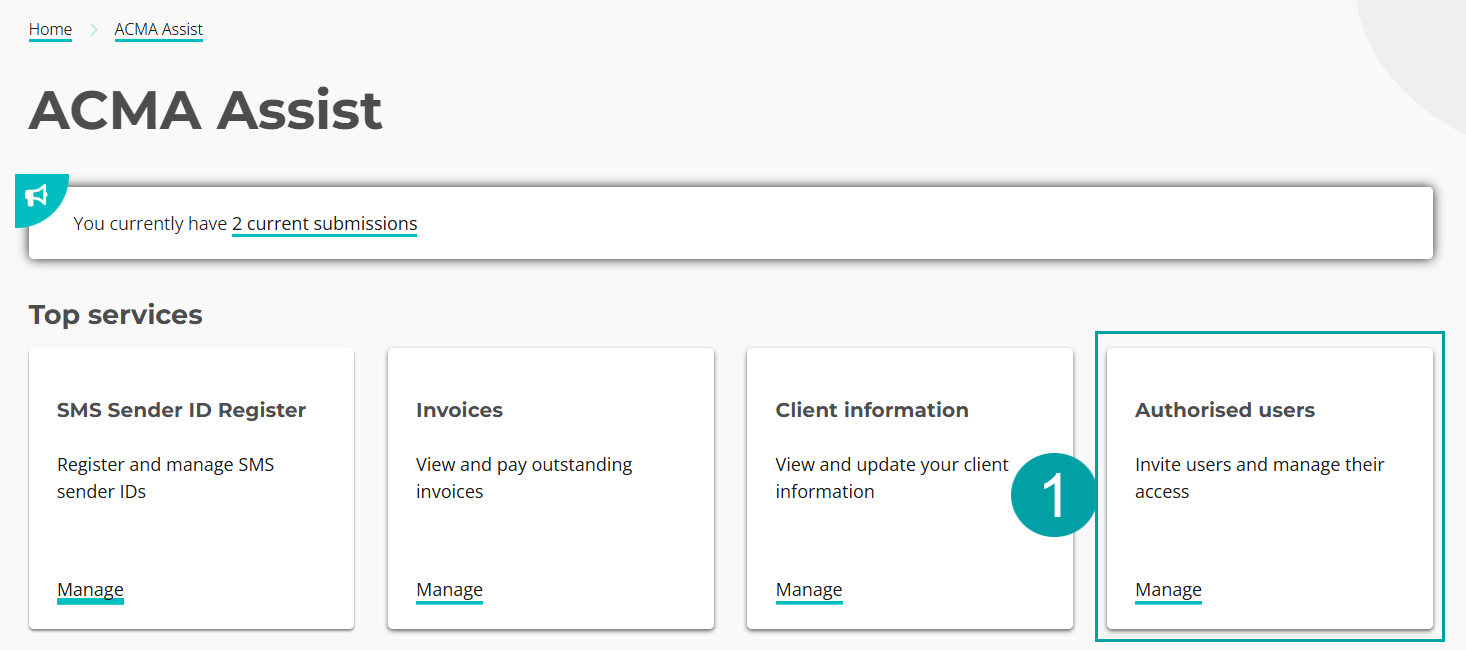
From the ACMA Assist homepage:
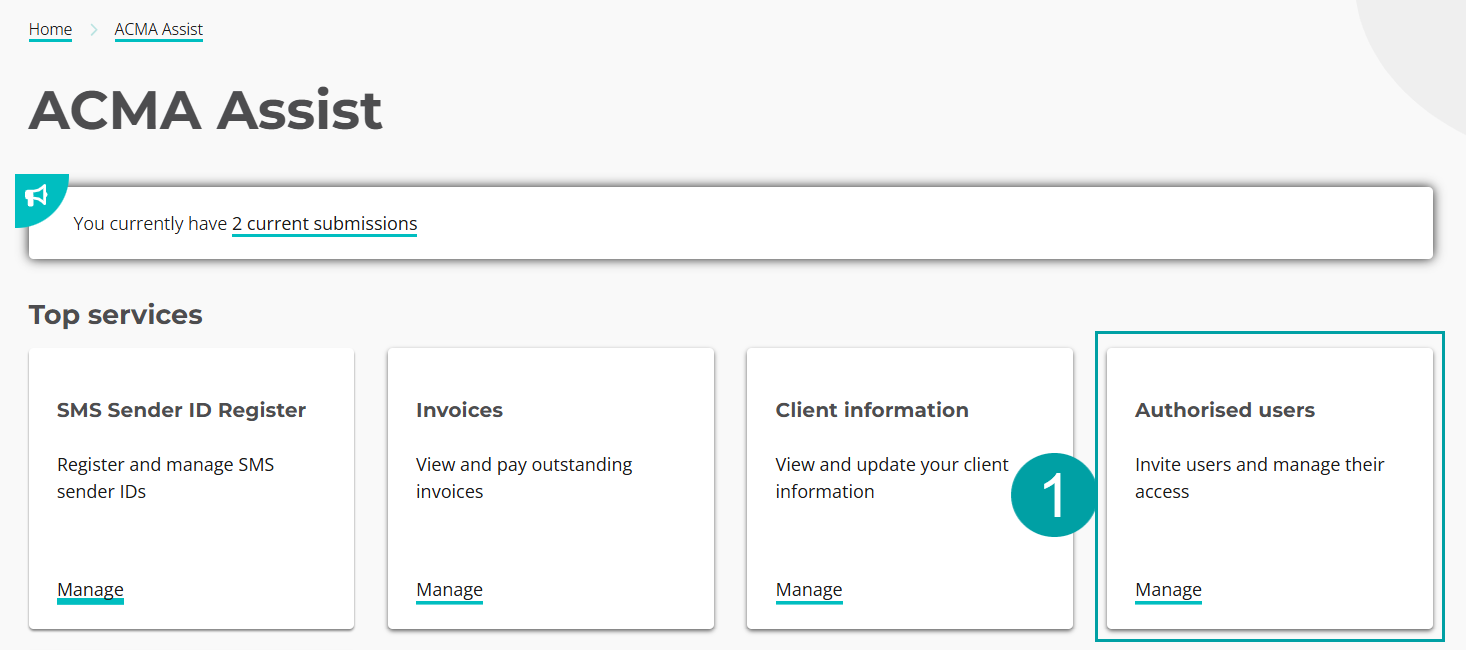
- Click on the Authorised users tile.
|
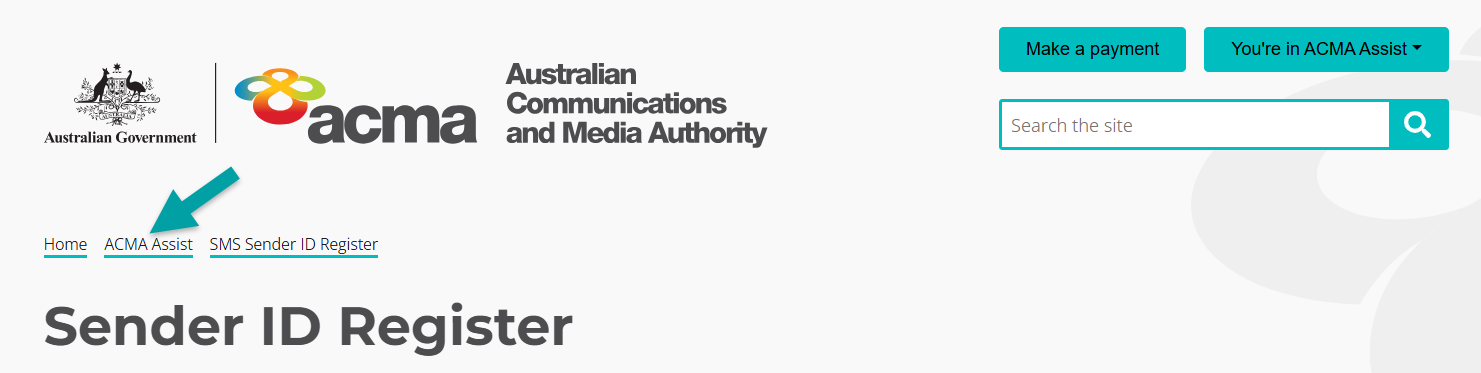
Note: You can return to the ACMA Assist homepage from any screen on the register by clicking on the ACMA Assist breadcrumb at the top of the screen.
|
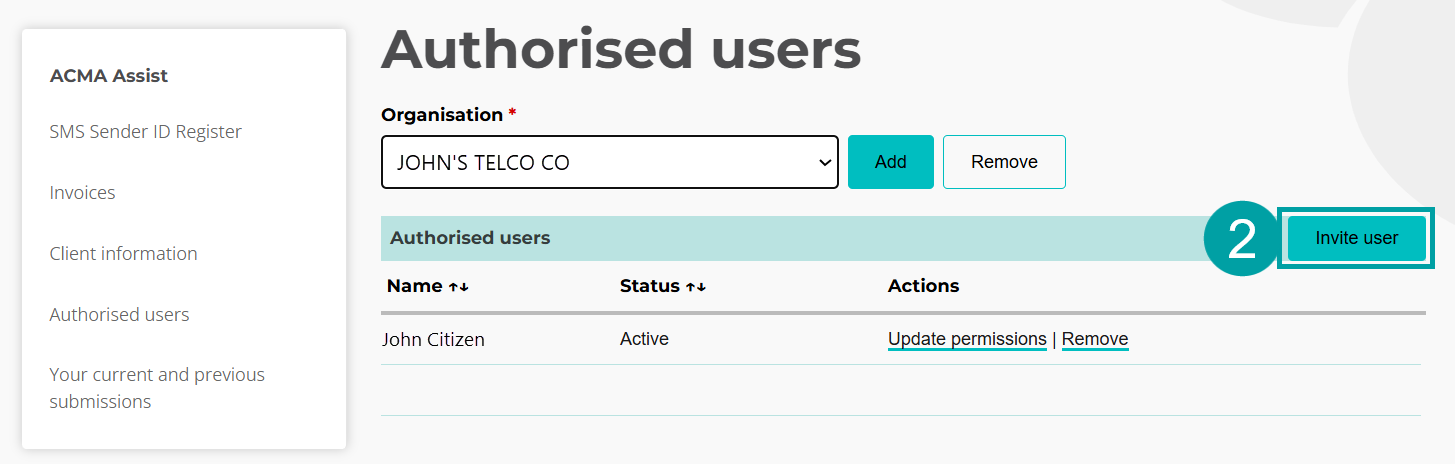
- Click on the Invite user button.
|
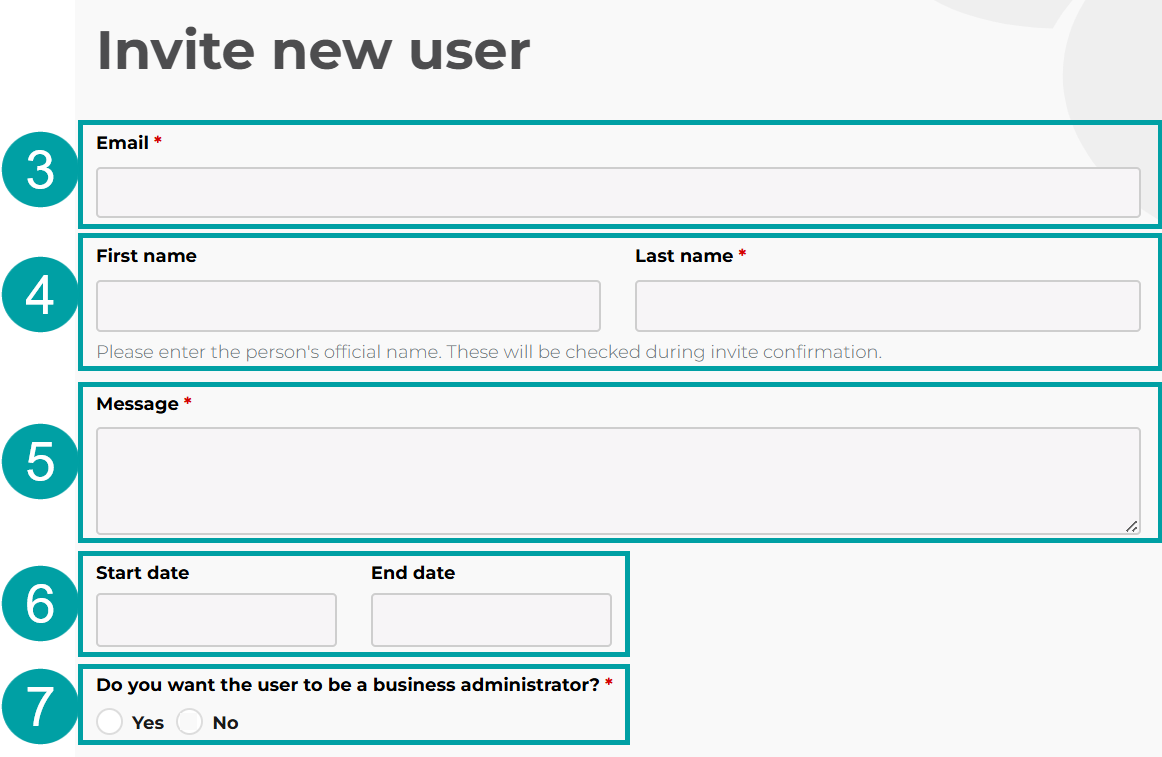
- Enter the new user’s work email address.
- Enter the new user’s name. This must exactly match the user’s name for their myID account.
- Enter a message to the user. This will appear in the email invitation. For example, ‘I am inviting you to access the SMS Sender ID Register, so you can apply to register and manage sender IDs on [your organisation name]’s behalf.’
- Enter a start and end date for their access if needed. You can leave this field blank.
-
Check:
- Yes to make the new user a business administrator which will allow them to perform all functions, including adding and removing users. Skip to step 9
- No to make the new user an authorised user and customise the permissions. Authorised users cannot add or remove other users.
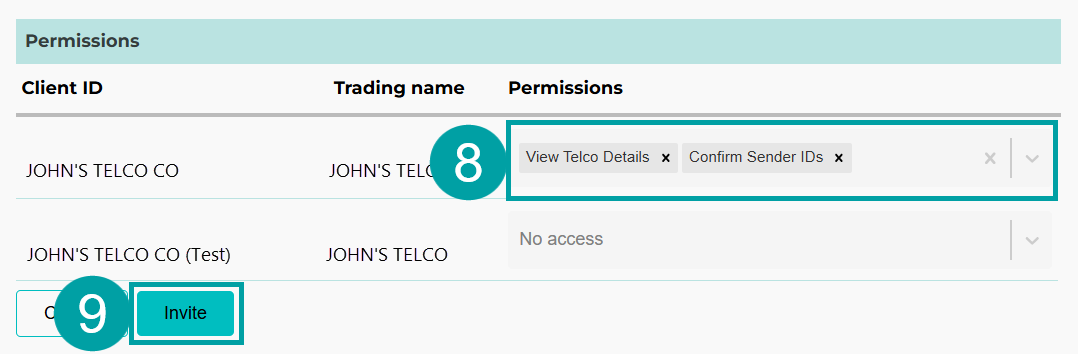
- Select the user permissions from the drop-down menu. The permissions available will depend on whether you are an originating, terminating and/or transiting telco.
9. Click the Invite button.
|
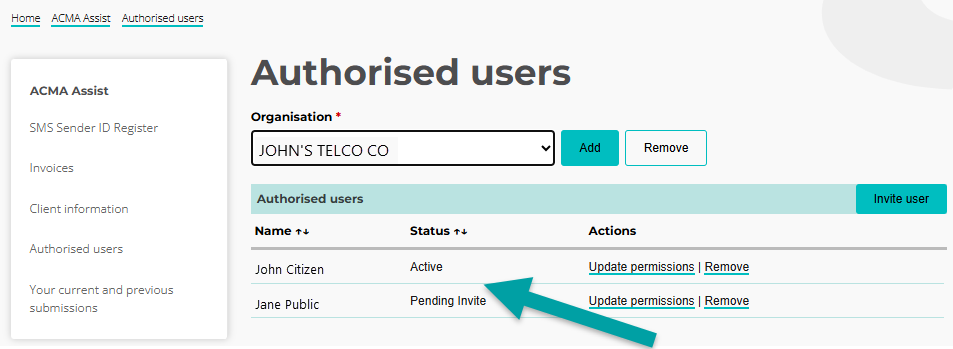
An email will be sent to the new user inviting them to access ACMA Assist. Once they accept the invitation, their status will change from Pending Invite to Active.
|
3.3.2 Update user permissions
Business administrators can update user permissions at any time.
From the ACMA Assist homepage:
- Click on the Authorised users tile.
|
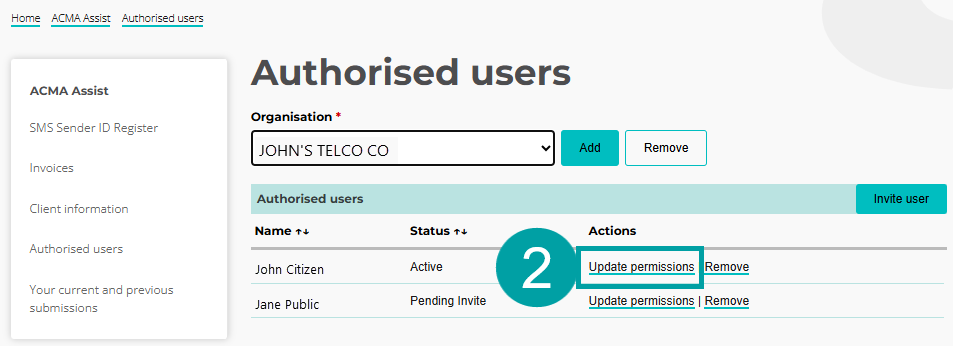
- Click on the Update permissions link next to the user whose permissions you want to update.
|
The permissions screen will open
- Update the start and/or end date
- Check
- Yes to change the user to a business administrator, which will allow them to perform all functions including adding and removing users. Skip to step 7
- No to change the user to an authorised user and customise the permissions. Authorised users can not add or remove other users.
- Click the X next to any permissions you want to remove
- Select the user permissions from the drop-down menu. The permissions available will depend on whether you are an originating, terminating and/or transiting telco.
- Click on the Update button
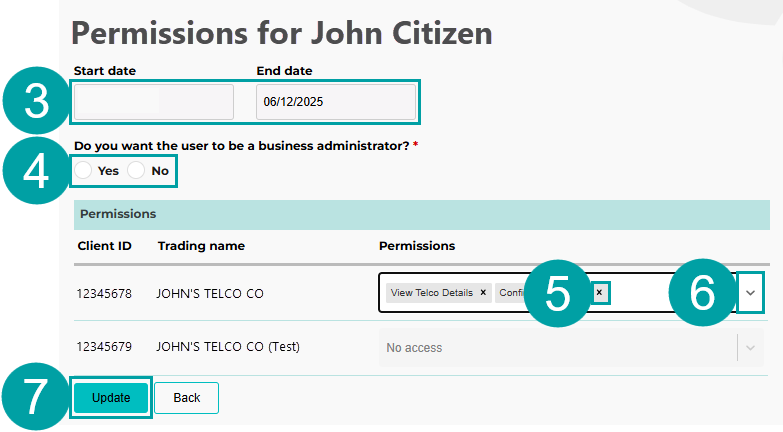
|
3.3.3 Delete other business administrators and authorised users from ACMA Assist
From the ACMA Assist homepage:
- Click on the Authorised users tile.
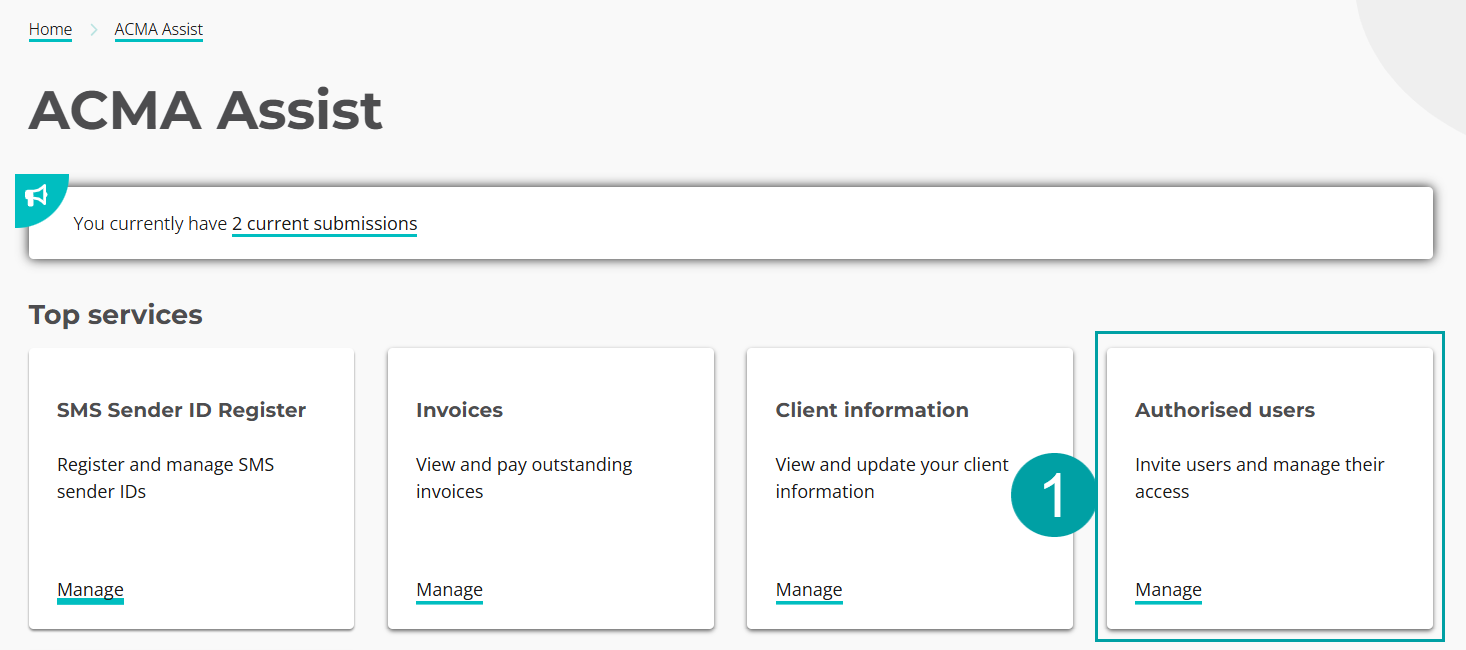
|
- Click on the Remove link next to the user who you want to remove.
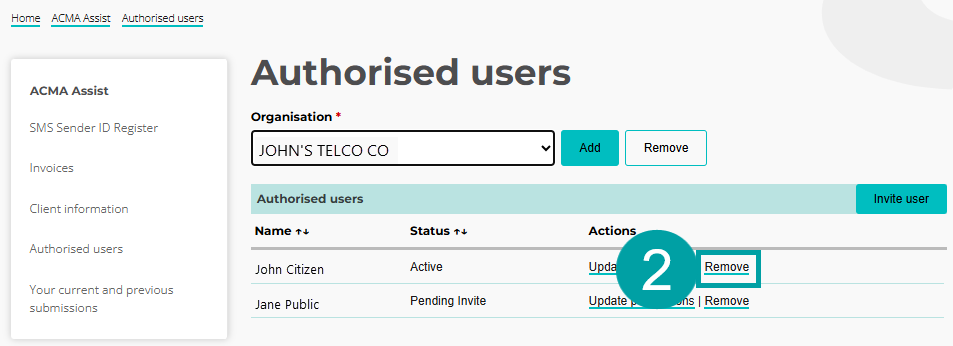
|
A pop up will appear
- Click on the OK button

|
Key terms
ABN (Australian Business Number)
Has the meaning given by section 41 of the A New Tax System (Australian Business Number) Act 1999.
ABR (Australian Business Register)
The register established under section 24 of the A New Tax System (Australian Business Number) Act 1999.
ACMA Assist
ACMA Assist is the online portal for the ACMA.
Certified telecommunications provider (certified telco)
A participating telco that is an originating telco that has been approved by the ACMA to be a certified telecommunications provider. A certified telco can apply to register sender IDs and send sender ID messages on behalf of non-ABN entities.
Client record (account)
An account that organisations set up with ACMA to access specific services. The account contains all relevant information about a telco or entity interacting with the SMS Sender ID Register.
Customer
An entity that has a contractual arrangement with their telco relating to the sending of sender ID messages.
Electronic messaging service provider (EMSP)
- EMSPs are defined in section 108A of the Telecommunications Act 1997, and include providers involved in sending text messages, such as:
- SMS aggregators
- customer relationship management platform providers
- software as a service providers
- communications platform as a service providers
- automated marketing platform providers
- two-factor authentication providers
After the ACMA approves the application, and in accordance with subsection 4(3) of the Standard, an EMSP can comply with its obligations under the Standard by:
- fulfilling the obligations itself, or
- becoming an EMSP partner, by arranging with another participating telco to fulfill some or all of the obligations on its behalf under subsection 13(5) of the Standard.
EMSP partner
An electronic messaging service provider that has a direct relationship with an entity and who has partnered with:
- any participating telco that is an originating telco – if the EMSP’s customers are ABN entities.
- An originating telco that is a certified telco – if the EMSP’s customers are a non-ABN entity.
and has arranged for the provider to fulfill some or all of the EMSP’s obligations under the Standard on its behalf.
Entity
One of the following who uses or proposes to use sender identification messages:
- an individual
- a body corporate
- a corporation sole
- a body politic
- a government entity (within the meaning of the A New Tax System (Australian Business Number) Act 1999)
- a partnership
- any other unincorporated association or body of persons
- a trust
- a superannuation fund (within the meaning of the Superannuation Industry (Supervision) Act 1993).
Entity associate
An entity who is authorised by another entity to send sender ID messages using the sender ID registered in the register for that other entity. Examples of entity associates are:
- a research company that has been engaged by a bank to send messages for the bank, using its sender ID
- a sports club that is authorised to send messages, using a sender ID that is owned by a sports league
- an advertising or marketing agency engaged by a business to run advertising and promotional campaigns, using a sender ID owned by that business.
International partner
An international telecommunications service provider that has a direct relationship with an entity and who has partnered with either:
- any participating telco that is an originating telco – if the international telco’s customers are ABN entities.
- An originating telco that is a certified telco – if the international telco’s customers are a non-ABN entity.
to make an application for registration of a sender ID and to send sender ID messages on behalf of the relevant customer.
Originating telecommunications provider (originating telco)
A telco that agrees to send sender ID messages on behalf of either:
- a customer
- an international partner
- an EMSP partner.
Participating telecommunications provider (participating telco)
A telco that has been approved by the ACMA to participate in the register.
Telecommunications provider (telco)
Either:
- a carrier
- a carriage service provider
- an electronic messaging service provider.
Telco partner
An international partner or EMSP partner. Requirements relating to telco partners are set out in section 13 of the Standard.
Terminating telecommunications provider (terminating telco)
A carrier that is responsible for delivering sender ID messages to message recipients who are connected to a public mobile telecommunications service owned or controlled by the carrier.
Transiting telecommunications provider (transiting telco)
A telco that connects with other telcos to transit sender identification messages between 2 telcos over a telecommunications network.