
On this page
About the RRL
The Register of Radiocommunications Licences (RRL) is a database of currently licensed radio services in Australia.
The RRL webpage has been designed to meet our requirements under Part 3.5 of the Radiocommunications Act 1992 (the Act) and the content required in the Radiocommunications (Register of Radiocommunications Licences) Determination 2017.
The RRL webpage provides the public with access to the Register of Radiocommunications Licences to be able to search and view licences relating to the use of radiofrequency spectrum, and also includes relevant broadcasting licences.
Searching the RRL
This section describes the options you have when searching the RRL and provides some handy tips to make the most of your search.
Select what to search for
From the main (home) screen, select the type of information you want to search.
- Licences – current radiocommunications and broadcasting licences.
- Clients – licensees who hold a current licence.
- Sites – locations at which licensed devices are authorised to operate.
- Assignments/registrations – specific devices (transmitters and receivers) that are operated under existing licences.
- Antennas – antennas that have been registered in the ACMA’s licensing system.
- Spectrum areas – areas authorised under current spectrum licences and area-wide licences.
- Access areas – areas where certain apparatus-licensed devices are authorised to operate.
- BSL areas – areas defined for broadcasting services.
Basic search
For a basic search:
- Select what you want to search for (for example, Antennas or Clients).
- Type a word or number into the search bar.
- Select ‘Search’.
Here is an example of a basic search. It looks for Licences related to ‘Perth’.
Search for all records
Enter an asterisk ‘*’ in the main search field to find all results for that item type (for example, licences, clients).
Here is an example of a search for all licences.
Target your search
Use the ‘Add search criteria’ option to search for specific characteristics of the items you are looking for.
You can add multiple search criteria to customise your search further.
When you perform a search with multiple criteria, the RRL will return only those results which match all the criteria.
Here is an example of a targeted search. It looks for sites whose name contains the word ‘Sydney’ and contains more than 5 assignments.
Text search options
When searching using criteria that requires text, you can choose how closely the results match what you type.
The system does text searches on a word-by-word basis. This may impact your search results, so we recommend considering adding one of the qualifiers identified below using ‘add search criteria’.
‘Starts with’
This option returns all results where any word begins with the text you entered.
Example: This search for clients whose name starts with ‘broad’ would return:
- any organisation whose name contains the word ‘broadcasting’
- individuals whose surname begins with ‘broad’.
‘Contains’
This option only returns results that contain the word being searched for in its entirety.
Example: This search for clients whose name contains ‘Australia’ would have results including Australia Post and Airservices Australia. It would not find Australian Broadcasting Corporation or South Australian State Emergency Service.
Tip: If you wanted to find all clients that have ‘Australia’ or ‘Australian’ in their name, you could instead use the ‘starts with’ option above.
Special search text
https://www.acma.gov.au/register-radiocommunication-licences-rrl#/clien…
When using ‘contains’ you can type multiple words, separated by a space, to search for items that contain any of those words.
Here is an example of a search for all clients whose name contains either ‘Telstra’ or ‘Optus’ or ‘NBN’.
Search by frequency
To find apparatus licences by frequency, you need to use the Assignments/Registrations option. This allows you to search the individual devices (transmitters and receivers) operating. The results of this search will list each device individually, and there may be multiple devices per licence.
You can search by either ‘centre frequency’, or within the entire bandwidth of the device by using ‘frequency range start’ and ‘frequency range end’.
Here is an example of a search for all transmitters which have any part of their emissions fall within the frequency range 24 GHz – 24.1 GHz
To find spectrum licences or area-wide licences (AWLs) by frequency, you should use the Spectrum Area search.
Use the ‘lower band start’ and ‘lower band end’ options to find licensed areas within a certain frequency range.
For spectrum licences with separate transmit and receive bands, use the ‘upper band start’ and ‘upper band end’ to search the second frequency range.
Here is an example of a search for all AWL areas whose frequency range covers any of the frequency range from 3600-3620 MHz.
Search by location
These options are available for Sites and Assignments/Registrations and can be used to refine your search results.
Search near a location
Use the ‘Located near’ option (under ‘add search criteria’) to find all results within a set distance of a particular location.
You need to enter the location using its latitude and longitude coordinates.
Tip: Latitude values should be negative to indicate south.
Here is an example of a search for all sites within 10 km of Broome, Western Australia
Search near a site
You can also search near an existing radiocommunications site.
Perform a search for the site and select the Site ID in the table of results. You will be taken to a page containing full details of that site.
At the top of that page are options to find ‘Nearby sites’ and ‘Nearby assignments’ and you will be able to select the relevant distance for your search, being 1km, 10km, 20km or 100km.
For example, this page contains details about an ACMA monitoring site with options to find nearby sites and assignments.
Search within an area
Use the ‘Located within’ option (under ‘add search criteria’) to find all results within a custom-defined area.
You need to enter the area as a polygon using ‘well-known text’ or WKT format. In the RRL, only polygons are supported.
What is WKT?
WKT is a way of describing a shape on a map using latitude and longitude coordinates. Each pair of coordinates represents a point, and the points are joined together to form a closed area.
In very simple terms, a WKT polygon looks like a list of coordinates wrapped in the word POLYGON.
Here is an example of a search that finds all sites within a rectangular area covering the Melbourne city centre.
The WKT used in this example is:
POLYGON ((144.951512 -37.813259, 144.971179 -37.807328, 144.974907 -37.815335, 144.955101 -37.821096, 144.951512 -37.813259))
View your results
Search results will include different features depending on what type of information you searched for.
All searches will include a table of results. You may also see a Map tab and a Direction finder tab.
Table of results
Customise columns
You can choose which columns appear in the results table.
- Select ‘Customise columns’ to add, remove or reorder columns.
- Select ‘Reset’ to return to the default view.
Different sets of columns can be selected for each type of table (licences, clients, etc). Your column selections for each type are saved and will apply to future searches until you change them.
Maps
Most searches include a Map tab showing relevant sites or areas.
Depending on what information you are looking at, maps may contain many different items. You can select a specific area or site shown on the map to see more details about that object.
Legend

|
A site at which there is at least one assignment/registration currently licensed. |

|
A site at which there are no assignment/registration currently licensed. |

|
Shows your location. Only available if your device has geolocation enabled. |
|
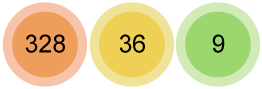
Represent a cluster of nearby sites. The numbers and colours indicate how many sites are in the cluster. Select a cluster to zoom in and see the sites within it. |

|
An access area, spectrum area, or broadcast licence area. |
Direction finder
When searching for sites, you will have a Direction finder tab. This tool shows where nearby sites or assignments/registrations are located relative to your current location.
If geolocation is enabled on your device, your current location will be displayed on the compass and the bearing field will be automatically populated.
If you do not have geolocation enabled on your device, or if you want to view the direction finder relative to a different location, you can manually enter a location. Enter the latitude, longitude and bearing in the appropriate boxes below the compass.
Arrows indicating the directions of the nearest sites from your location will be shown on a simple compass dial. The compass dial has a focus area shown as a yellow sector. When you align an arrow with the focus area, a summary of that site’s details are given below the compass dial.
You can also change the number of nearest sites shown.
Arrows depicting directions of sites will have the following styling applied:
- Black – default shows the direction to sites relative to your location
- Red – currently focussed site. Its summary details will be displayed below the compass dial
- Green – estimate line-of-sight from your location to the focussed site
Save and share your results
Download files
CSV files
Any table of results can be downloaded to your device as a CSV file. Please note that if you download this file, it will contain all columns that are available to you using the Customise Columns option – it will not be restricted to those you have currently selected.
Note: CSV downloads are limited to 100,000 rows.
KML/KMZ files
Where relevant, and where there are maps, you can download KML/KMZ files of the map, or the individual items on the map. These files can be opened in tools such as Google Earth.
Share links
If you copy, save or bookmark a page, the link keeps the exact view at the time you saved or shared it. This includes your search terms, selected filters and selected columns in tables.
Other ways to access RRL data
Data download
You can download the full RRL dataset. The files are available here. The page can also be accessed using the ‘Data Download’ tile on the RRL home page.
The data is provided as a set of CSV files and several reference documents in a ZIP file.
Daily ‘difference’ files are also available for download. These are in the same format at the primary data files, but show only what has changed from the previous day.
All RRL data, including these data files, are regenerated every few hours.
You can separately download a file containing all device power patterns for spectrum licensed devices.
API
Live access to RRL data is available via a web application programming interface (API). The API and related documentation is available through the tile on the RRL home page.
Users must authenticate with a digital ID to be able to access the API.
Offline RRL
The Offline RRL lets you download RRL data into your browser so you can search it without an internet connection. It provides its own set of search tools which are different from the main RRL.
The Offline RRL has its own dedicated Help page which can be accessed within the tool.
Class licences
Some radiocommunications devices operate under class licensing arrangements and are not recorded in the register itself, you can find more about these licences from the RRL home page.